Skip to content
View in the app

A better way to browse. Learn more.

Thailand News and Discussion Forum | ASEANNOW

A full-screen app on your home screen with push notifications, badges and more.

To install this app on iOS and iPadOS
  1. Tap the Share icon in Safari
  2. Scroll the menu and tap Add to Home Screen.
  3. Tap Add in the top-right corner.
To install this app on Android
  1. Tap the 3-dot menu (⋮) in the top-right corner of the browser.
  2. Tap Add to Home screen or Install app.
  3. Confirm by tapping Install.

MikeWill

Advanced Member
  • Joined

  • Last visited

  1. JIB

    MikeWill replied to OneMoreFarang's topic in IT and Computers
    How about English translation?
  2. Thank you for the useful info, sirineou.
  3. jaywalker2 gave you good advice. I will add that you'd better try TRUE or AIS as your providers.
  4. Dear steven100, Forget to ask you, how do you know that it's so bad? I do agree with you that their support sucks.
  5. When it worked, it worked good for me. I'm still using its DNS, i.e. 1.1.1.1
  6. Here is the content of the "warp-debugging-info-20230831-102627.zip" attached.
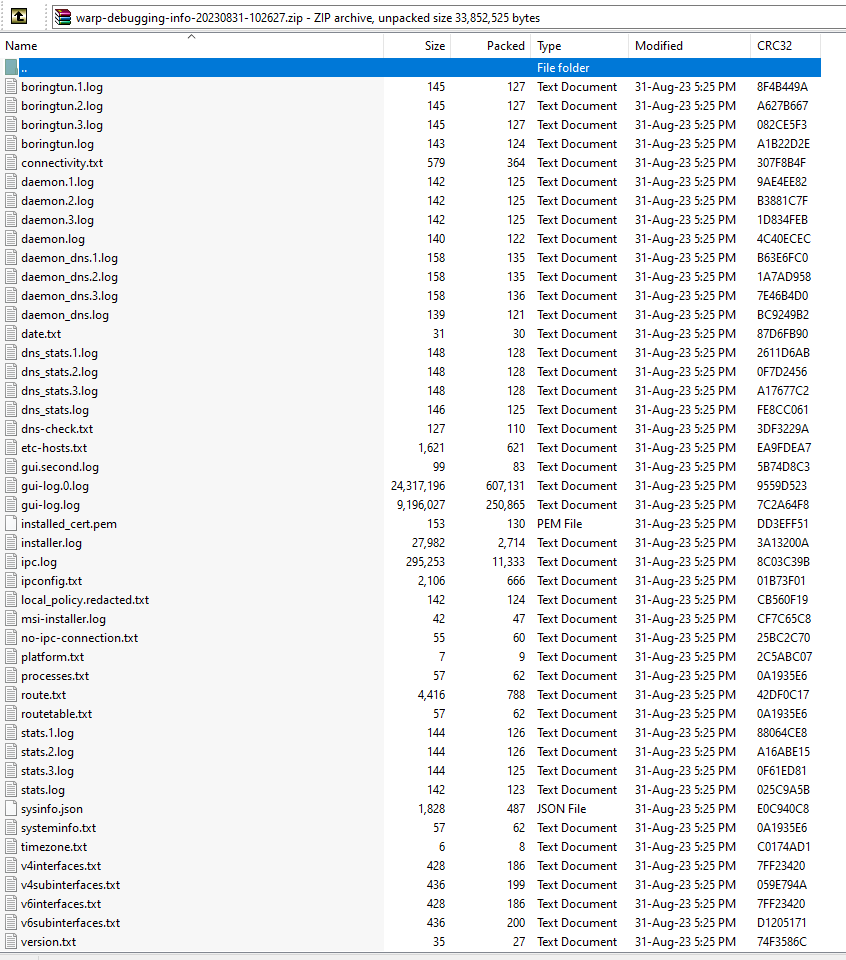
  7. The Cloudflare WARP service is not available. Try rebooting. This is an error message that shows every time I start my PC: Windows 10 Pro x64; 8 GB of RAM; Chrome browser. The Cloudflare WARP icon in the system tray has greyed out. It all happened after I lost an Internet connection, and after it was repaired the Cloudflare WARP service became unavailable. At that time an icon called "warp-debugging-info-20230831-102627.zip" appeared on my desktop. If needed I can post the content of that file. I have tried to uninstall (v. 23.7.160.0) and reinstalled the app (Cloudflare_WARP_ Release-x64.msi) and it wasn't successful, as well as rebooting the system. Any help?
  8. My due date for the 90-day report is 25 June. I submitted my notification online on 16 June, and till now its status is pending. Is there somebody I can contact (by phone or email) to check out why my submission hasn't been approved? Your help will be much appreciated.

Account

Navigation

Search

Search

Configure browser push notifications

Chrome (Android)
  1. Tap the lock icon next to the address bar.
  2. Tap Permissions → Notifications.
  3. Adjust your preference.
Chrome (Desktop)
  1. Click the padlock icon in the address bar.
  2. Select Site settings.
  3. Find Notifications and adjust your preference.